Draw It: a Pictionary-style drawing game for interactive touch screens
A Pictionary-style classroom game: one student draws the word on the touch screen with a finger, and their team guesses. The word stays secret. Free.
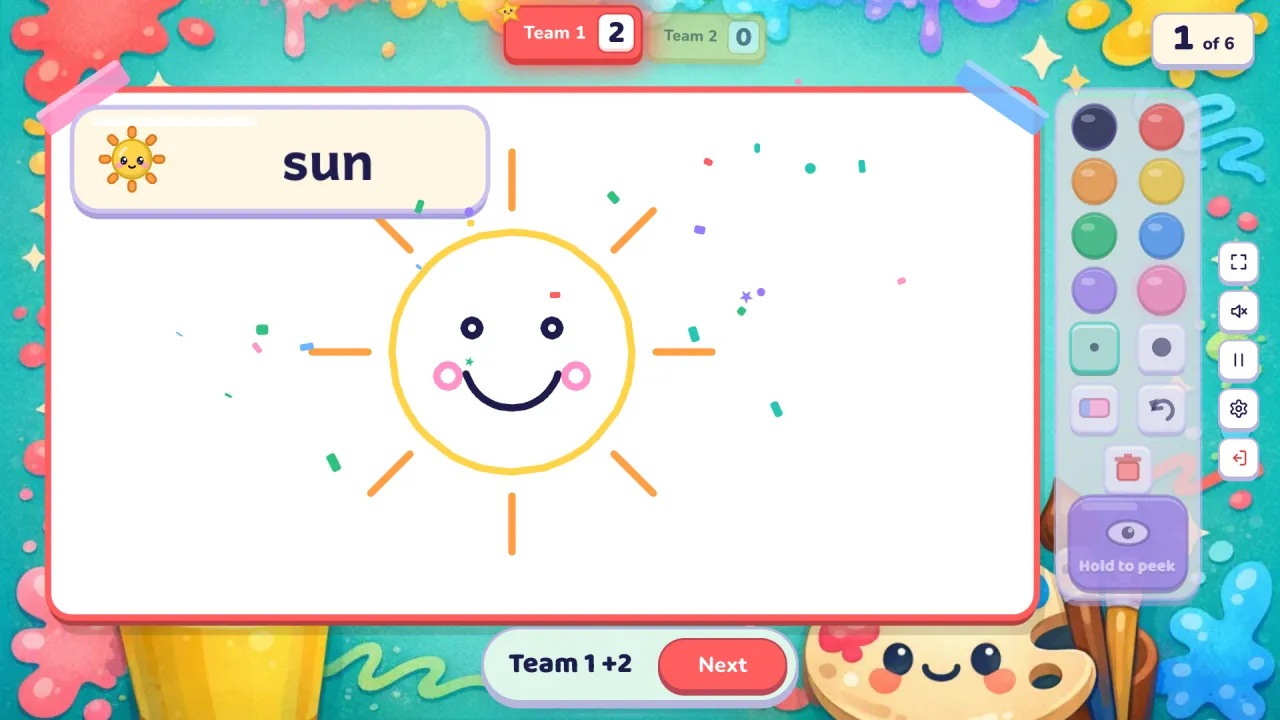
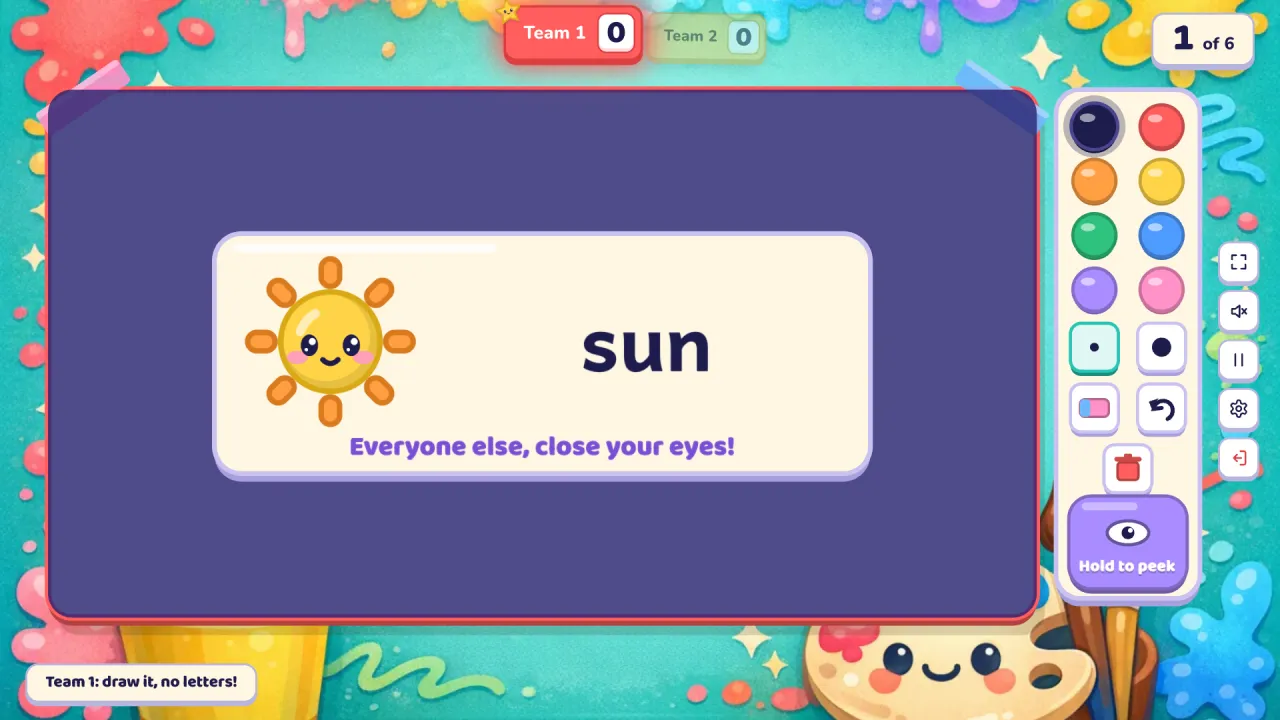
Draw It is a Pictionary-style drawing game for the classroom, made for interactive touch screens. One student from the team whose turn it is draws the word on a big sheet of paper with a finger, no letters allowed, and their team shouts guesses. The word never shows on the big screen while the team is guessing: the drawer reads it on your phone, or holds Peek on the board while the rest of the class closes its eyes.
At a glance
| Players | The whole class in 2–4 teams free (up to 8 with Pro); one drawer per turn |
| Time | 10–15 minutes for 12 words |
| Works with | Any set: English words with pictures or meanings, and subject sets (the answer is what students draw) |
| Best for | Vocabulary review, speaking ("Is it an animal?"), interactive touch displays, a calm but lively end of the lesson |
| You need | A touch screen (a projector works with a mouse), and your phone as the remote |
How to play Draw It
- Make or pick a question set. Snap a textbook page, paste a word list or type a topic, or open a free set from the library. Concrete words (animals, food, objects, places) draw best.
- Pick Draw It, set the teams and start. We suggest a 60-second timer per word.
- Play. The drawer looks at the word on your phone, or holds Peek on the board while everyone else closes their eyes. Then they draw. Their team guesses out loud. When someone says the word, tap Correct on your phone; if time runs out or they give up, tap Not yet. The answer card appears over the drawing, and the next team draws.
Rules and scoring
- Guessed right: 2 points for the drawing team.
- Not yet: no points. With the steal rule on, the other teams may guess for the full points.
- No letters or numbers in the drawing, and no talking from the drawer. Gestures are up to you.
- Double and triple questions are worth 4 or 6.
- The word is never read aloud. Listening questions are left out so the stage can't give it away.
- Settings: a timer per word (off, 10, 20, 30 or 60 seconds; running out counts as not yet), steal, hide the score, calm or no effects.
The drawing tools
- Eight crayon colours, a thin and a thick brush, an eraser, undo and clear.
- Every finger draws its own line, so two students can draw together if you want a pair to draw.
- Pinch-zoom is switched off on the game, so a second hand never zooms the page.
What you can teach with it
- Animals, food and toys at Pre-A1 and A1: quick, fun drawings everyone can try.
- Places, jobs and actions at A2 and B1: harder to draw, so the team asks questions in English ("Is it a person?", "Is it big?").
- Science or geography: a volcano, the water cycle, a triangle; the answer of each question is what gets drawn.
Tips from the classroom
- Set the timer to 60 seconds. Without a timer the round lasts until you tap Correct or Not yet.
- Let the drawer choose a colour first. It slows the rush and gives shy students a moment.
- Ask the guessing team to answer in full sentences: "It's a giraffe!"
- If your phone is in your hand, just show the drawer the screen; Peek is there when it isn't.
- Keep the drawing up for a moment after the answer: everybody wants to see how good it was.
Play it without a screen
- Write words on slips of paper and fold them.
- One student draws on the whiteboard; their team guesses.
- Use a phone or a sand timer for one minute per word.
- Keep the score in team columns.
The screen version keeps the word secret for you, gives every drawer the same crayons, counts the time and keeps the score.
Questions teachers ask
Is Draw It free?
Yes. Playing is free, with library games and your own typed questions. The free plan also includes 10 AI question sets a month (3 from photos).
How does the drawer see the word without the class seeing it?
Two ways. Your phone, the remote, always shows the answer, so you can show it to the drawer. Or the drawer holds Peek on the board: the word covers the paper while the class closes its eyes, and disappears as soon as the finger lets go.
Do I need a touch screen?
It is made for one: drawing with a finger feels natural on an interactive display. On a projector you can still play with a mouse or a pen tablet.
Do students need devices?
No. The class plays on one shared screen. Only your phone is used, as the remote.
Can a team lose points?
Only if you switch on the minus-point rule for wrong answers. It is off by default.
What is the difference from Hot Seat?
In Hot Seat the team describes the word with words for a player who can't see the screen. In Draw It the team gets a picture instead, so it works for younger students and for any subject.
For more speaking games, try Hot Seat or Picture Dice, and see interactive whiteboard games.